
If you run a local business, shop, service, or even work from home — a Google Business Profile (GBP) can help people find you on Google Search and Google Maps. And the best part? It’s completely free.
However, if you prefer expert assistance, Local Vista, a dedicated GBP Manager Agency, can manage and optimize it for you.
In this blog, you’ll learn:
✔ What Google Business Profile is
✔ Why it’s important for your business
✔ Step-by-step guide to creating your profile
✔ Tips to make your profile rank higher on Google
What is Google Business Profile (GBP)
Google Business Profile (earlier known as Google My Business) is a free tool by Google that allows businesses to appear on:
- Google Search
- Google Maps
- “Near me” searches
It shows your business name, address, phone number, website, photos, reviews, and working hours — right when customers search for you.
Why You Should Create a GBP Profile
Creating a GBP helps your business:
- 📍 Appear on Google Maps & Local Search
- 📞 Get more calls and customer visits
- ⭐ Collect customer reviews & build trust
- 💰 Get more leads without paying for ads
- 📊 Track views, calls, and website clicks easily
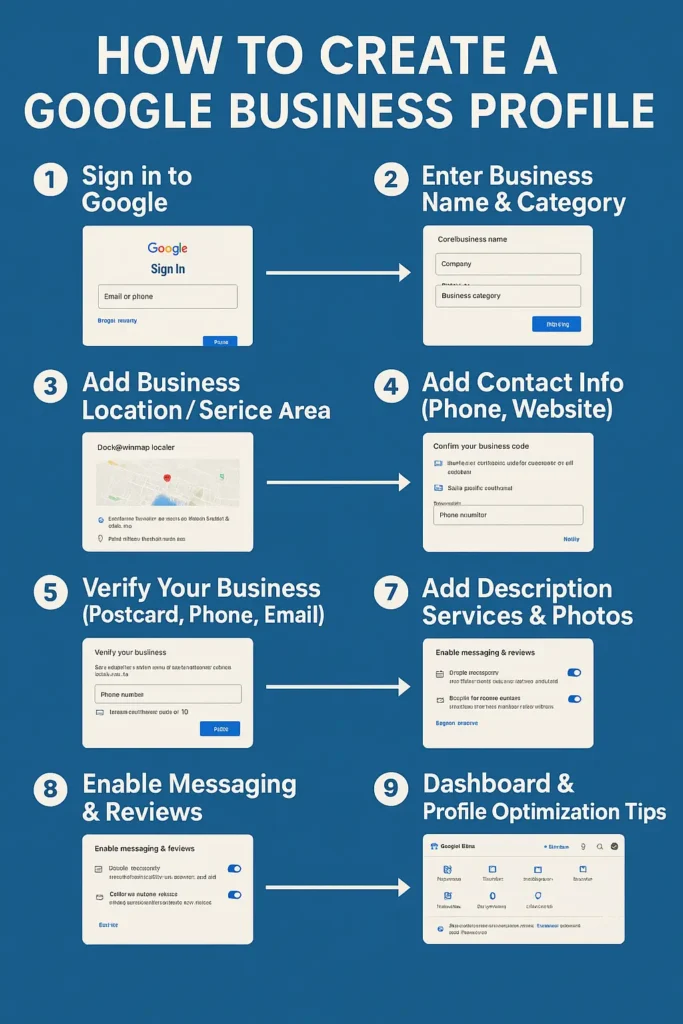
Step-by-Step: How to Create a Google Business Profil
Step 1: Sign in to Google
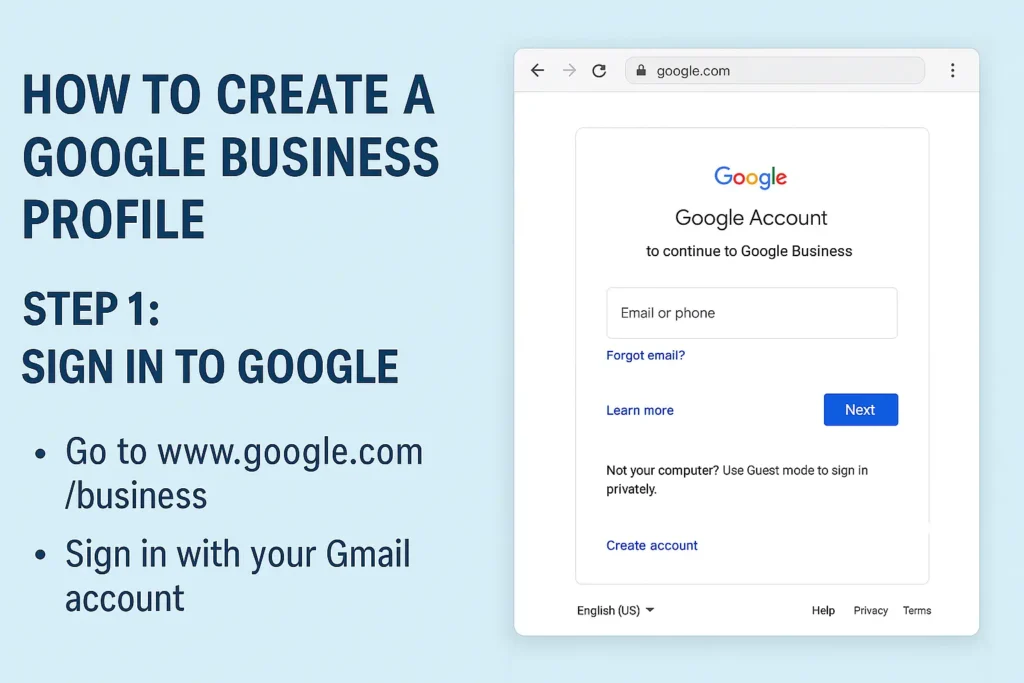
- Go to www.google.com/business
- Sign in using your Gmail account
- If you don’t have one, first create a Google account
Step 2: Add or Claim Your Business
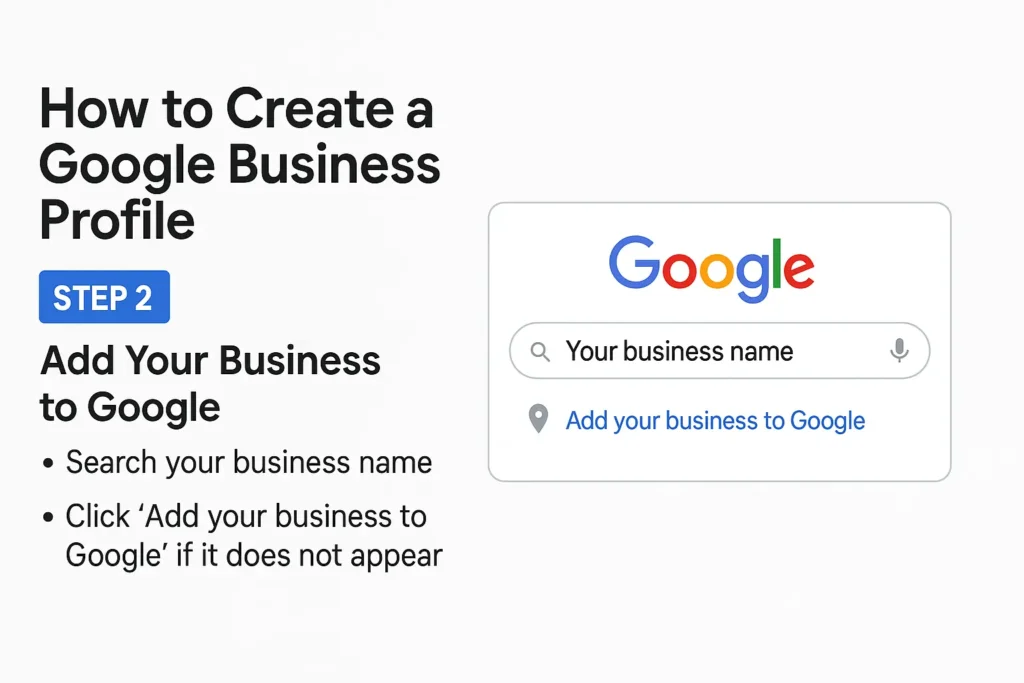
- In the search box, type your business name
- If your business appears → Click on it to claim
- If it doesn’t → Click “Add your business to Google”
Step 3: Enter Your Business Name & Category
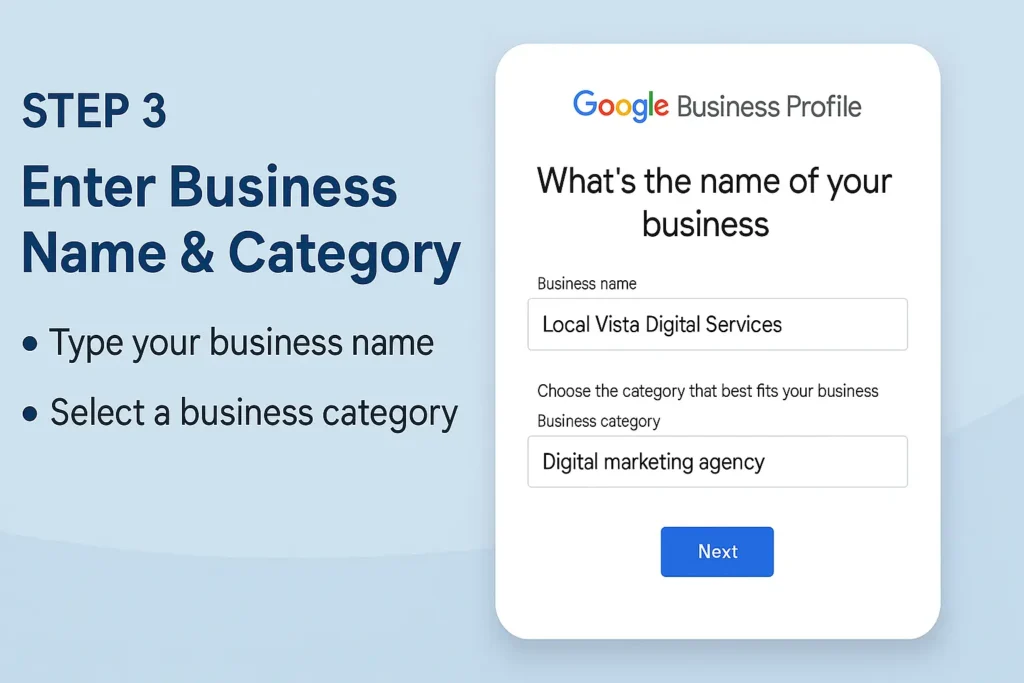
- Type your business name (e.g., “Local Vista Digital Services”)
- Select a business category (e.g., “Digital Marketing Agency”, “Restaurant”, “Salon”, etc.)
- Click Next
Step 4: Add Business Location or Service Area
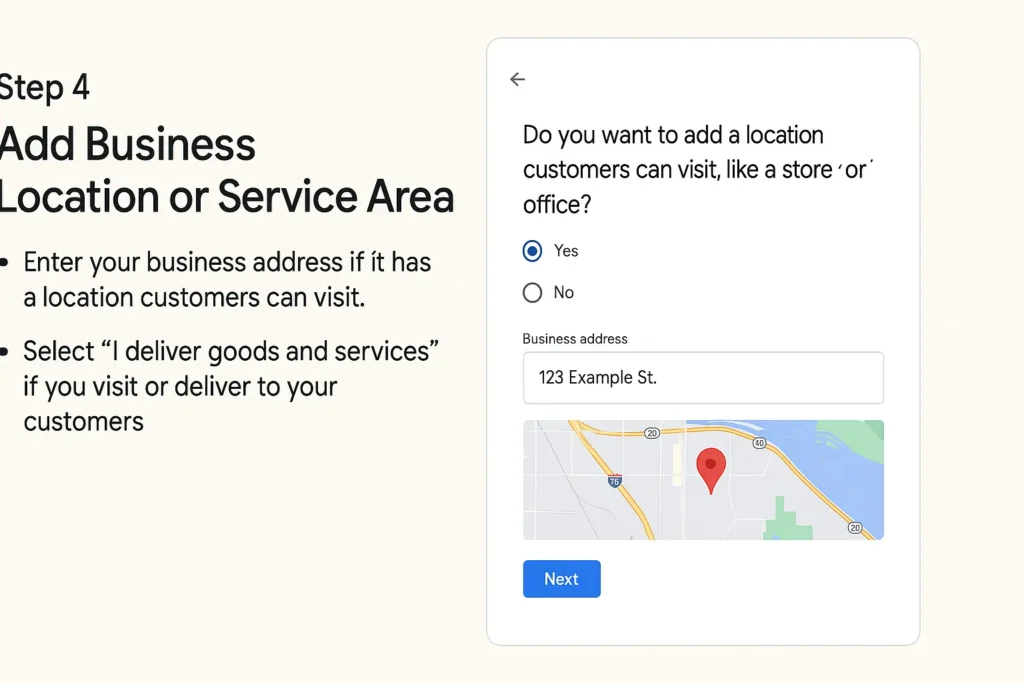
You will see two options:
✔ Yes, I have a physical shop/office
→ Enter your address & pin location on Google Maps
✔ No, I deliver services to customers
→ Add your service areas (city, region, or neighborhoods)
Step 5: Add Contact Information
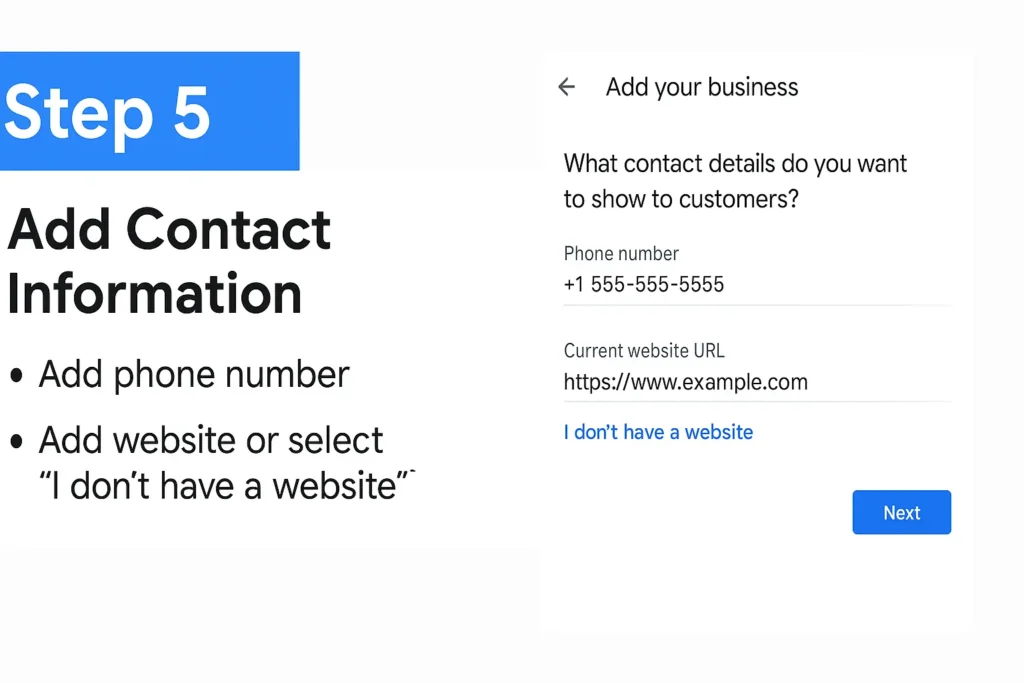
Google will ask you to add:
- Business phone number
- Website link (or choose “I don’t have a website”)
- Click Next
Step 6: Verify Your Business
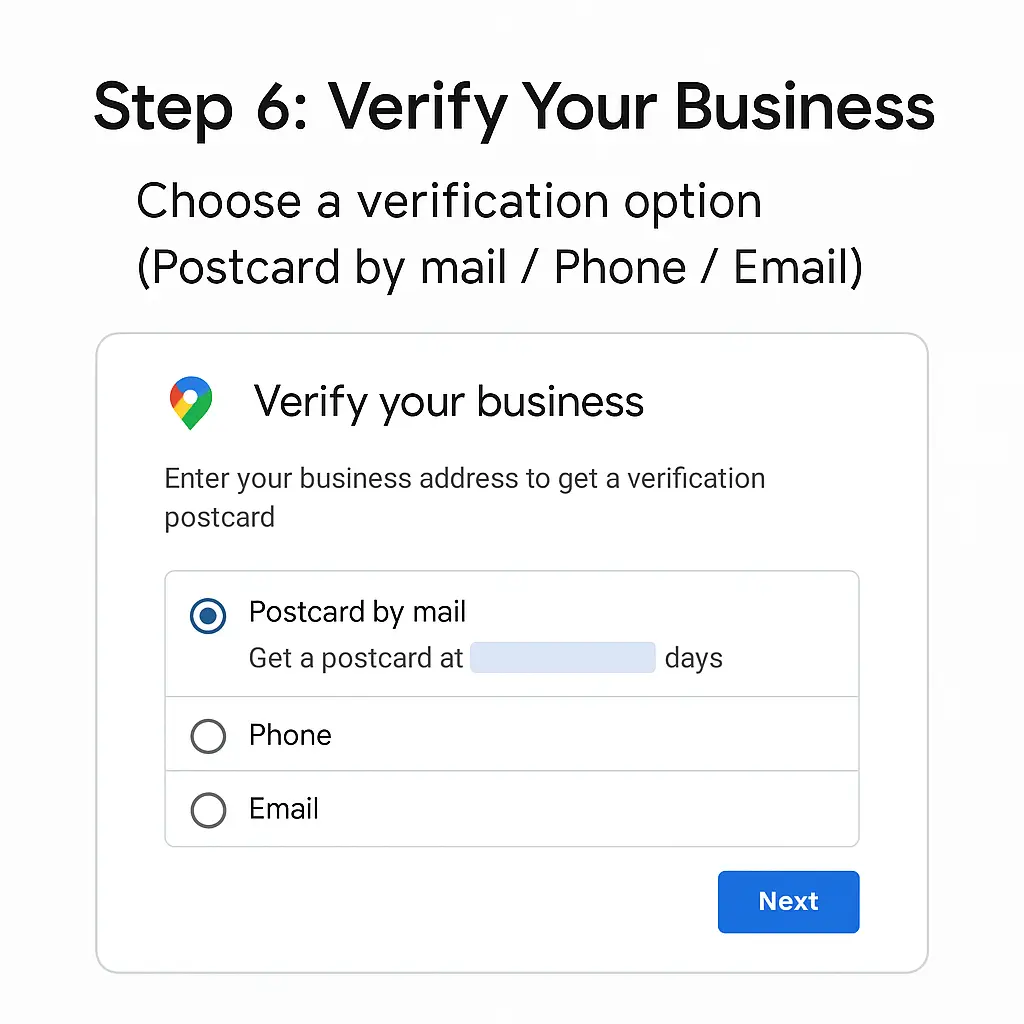
To show your business on Google, verification is required. You can verify through:
✔ Postcard by mail (most common method)
✔ Phone call / SMS (if available)
✔ Email (for some categories)
Enter the code you receive to complete verification.
Step 7: Add Business Description, Services & Photos
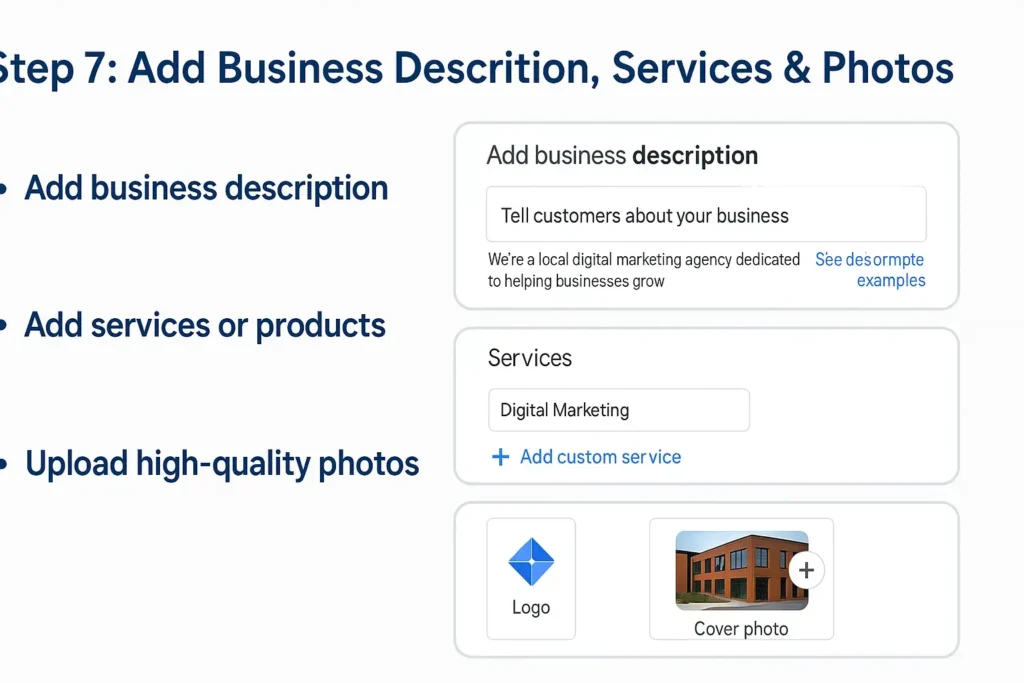
After verification or even during waiting time, complete your profile:
- Add a short description of your business
- List your services or products
- Upload high-quality photos, logo, cover image, interior/exterior, staff, menu, etc.
Step 8: Enable Messaging & Customer Review
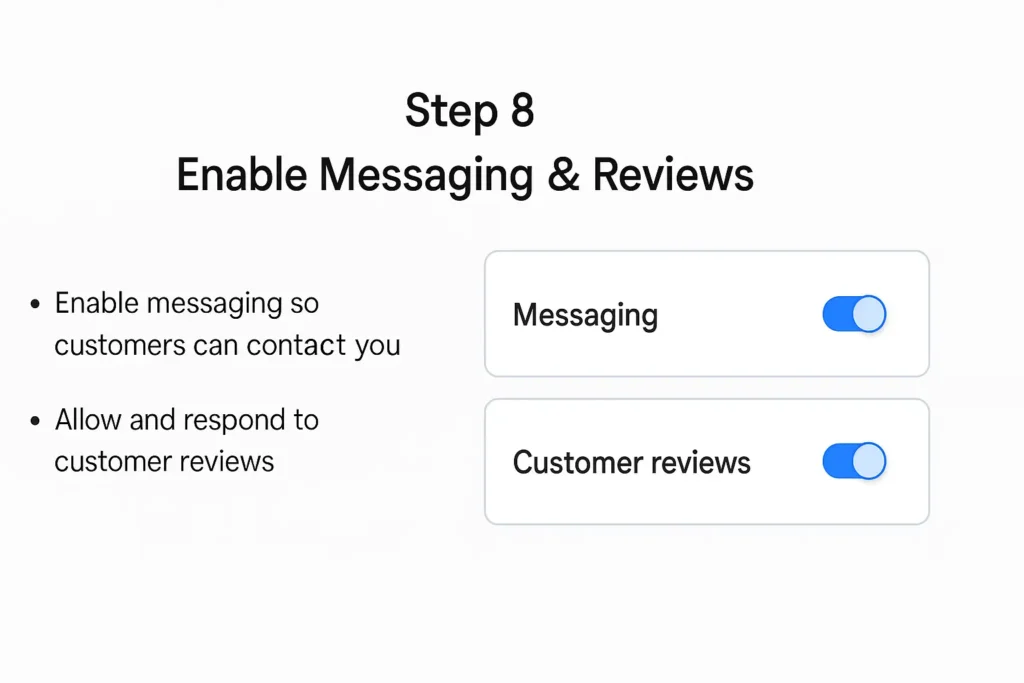
- Turn ON “Chat / Messaging” to allow customers to send you direct messages
- Ask happy customers to leave reviews
- Reply to every review (positive or negative) politely
Step 9: Use Your GBP Dashboard to Manage Everything
From your dashboard, you can:
✔ Edit business details anytime
✔ Add new photos, updates, offers, events
✔ View how many people called you or visited your website
✔ See customer questions & answer them
✔ Post weekly updates (helps in ranking)
Pro Tips to Rank Higher on Google Maps
✅ Use correct Name, Address, Phone (NAP) everywhere online
✅ Add real photos of your shop, team, products
✅ Keep your business hours updated
✅ Post weekly updates or offers
✅ Reply to all customer reviews
✅ Add services, products, and FAQs inside your profile
Final Words
Setting up a Google Business Profile is easy, free, and one of the best ways to grow your local visibility. Whether you are a café, salon, doctor, freelancing service, or agency — GBP helps customers find and trust you.